SeatingPlannerApp Alternative: SeatCanvas, One-Time (2026)
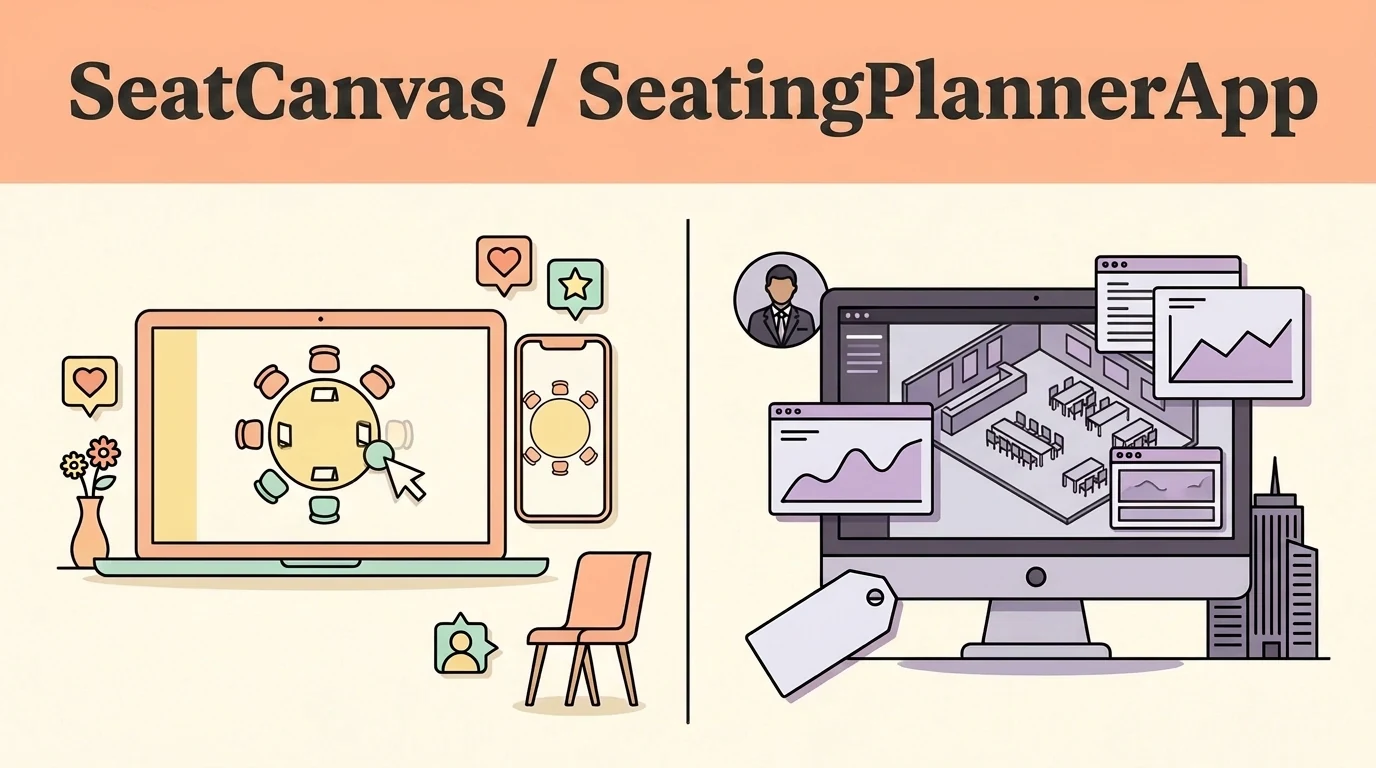
SeatCanvas is the $19.99 one-time seating planner for couples and solo planners who want a published price, permanent 40-guest free tier, and print-ready PDF/PNG/CSV exports without hidden upgrades.
SeatingPlannerApp is a free-to-start online planner built for hosts wanting one-click AI auto-arrange, dietary tracking, and color-coded guest groups, with premium features unlocked through an in-app subscription flow.
Which one fits you
Choose based on your real event scale and team workflow.
Pick SeatCanvas if
- Couples planning a single wedding who want a published $19.99 one-time price without recurring subscription fees
- Events with up to 40 seated guests who need full PDF, PNG, and CSV exports completely free
- Bilingual hosts needing a complete native Spanish-language interface for Quinceañeras or multicultural weddings
- Planners who want complete transparency on pricing before investing time building their room layout
Pick SeatingPlannerApp if
- Hosts who want an AI algorithm to automatically generate an initial seating arrangement in a single click
- Planners who require built-in guest dietary restriction tracking directly inside vendor exports
- Coordinators who want visual color-coded guest groupings to separate family, wedding party, and coworkers
- Users who are comfortable discovering upgrade pricing during the in-app subscription checkout flow
The five differences that decide this
The load-bearing distinctions between the two products, stated directly.
| Criterion | SeatCanvas | SeatingPlannerApp |
|---|---|---|
| Automatic seating | Smart Seat, an AI seating assistant, seats your sorted guest groups (free accounts preview it; the Event Pass seats every guest) | One-click AI auto-arrange suggests an automated layout based on guest lists |
| Pricing transparency | Published $19.99 one-time Event Pass with no recurring subscription or expiry | Price not published on a public page; premium unlocks via an in-app subscribe flow |
| Export formats | PDF, PNG, and CSV exports included across free and paid tiers | PDF export and read-only web share link documented; no native PNG or CSV |
| Dietary tracking | Guest name and party size mapping with custom table notes | Dedicated dietary requirement tracking included in vendor exports |
| Language localization | Complete native interface available in English and Spanish | English-only interface with no Spanish support found |
What one wedding actually costs
Standardized baseline: One wedding, 120 guests, one person planning it
- Free tier covers up to 40 seated guests permanently
- $19.99 one-time Event Pass unlocks unlimited guests and exports
- No subscription, no auto-renewal, no recurring monthly fee
- Free to create and preview an initial room layout
- Premium features gated behind an in-app subscribe flow
- Price not published on an open public pricing page (checked September 2026)
Checked at https://seatingplannerapp.com on 2026-09-17. If it changes, this page changes.
When SeatingPlannerApp is the better choice
- SeatingPlannerApp's one-click AI auto-arrange calculates an optimized initial seating layout instantly, saving early setup time.
- Built-in dietary tracking compiles guest dietary needs directly into vendor-facing exports for catering teams.
- Color-coded guest grouping makes it simple to visually audit family clusters, bridal party seats, and friends at a glance.
If one-click automated seating layout generation or integrated dietary tracking is essential to your planning workflow, SeatingPlannerApp is purpose-built for that approach.
Moving your guest list over
What to expect before you spend time switching.
- ✓ Guest first and last names
- ✓ Party sizes and table grouping notes
- ✓ Dietary requirements and custom annotations
- — Automated AI arrangement logic
- — Color-coded group styling rules
- — In-app room layout geometry and custom floor objects
Reversible: Yes. Your original file/account is never modified or locked.
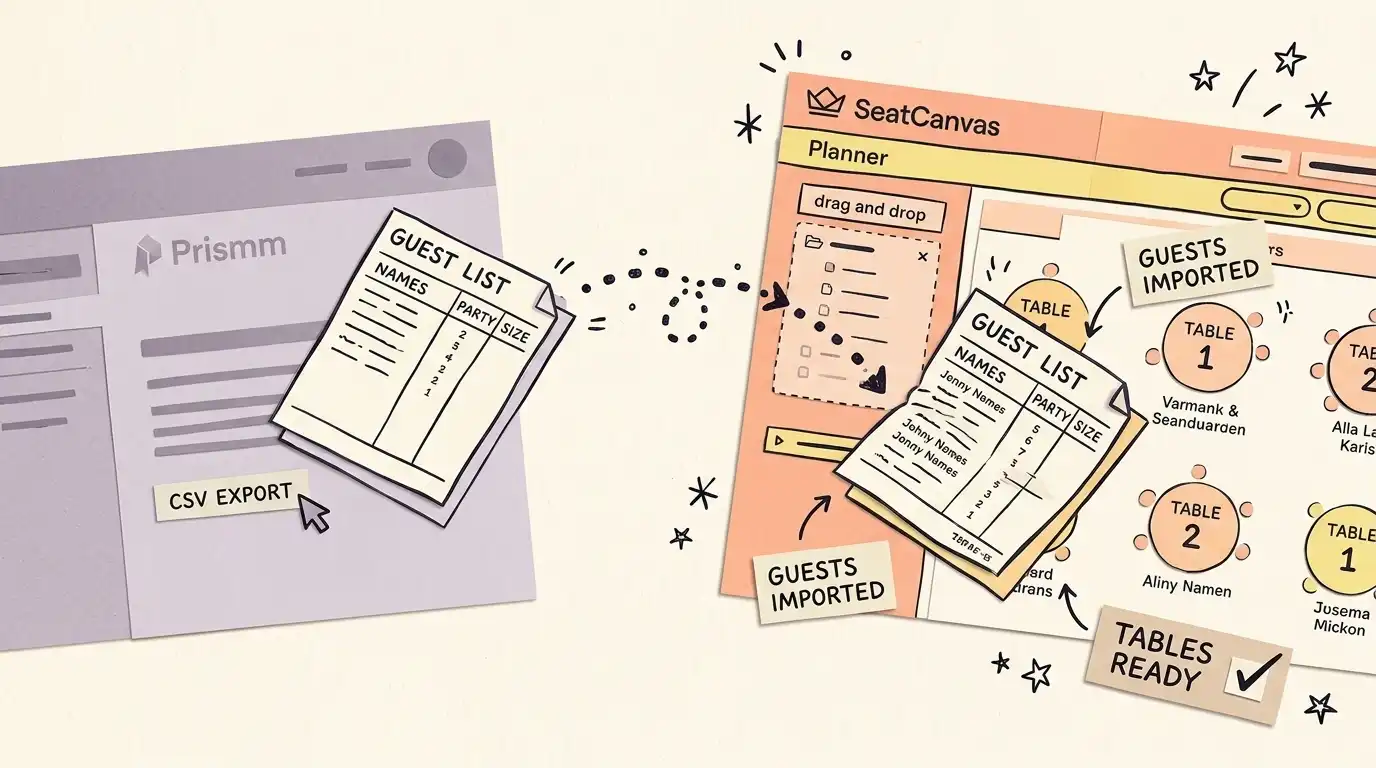
Step-by-step transfer guide
- In SeatingPlannerApp, locate the original guest list spreadsheet or CSV you uploaded.
- If you entered guests directly into the interface, copy the names and party sizes into a spreadsheet and save as CSV.
- Open the SeatCanvas planner in your browser — free for up to 40 guests without creating an account.
- Click the guest list icon, choose Import CSV, and upload your spreadsheet.
- Use the column-mapping dropdowns to match your spreadsheet columns to SeatCanvas's guest name and party-size fields.
- Drag tables onto the canvas, place your guests, and export your finished floor plan as a PDF or PNG.
Every feature, side by side Full comparative audit across both platforms Toggle table
| Feature | SeatCanvas | SeatingPlannerApp | What that means |
|---|---|---|---|
| SEATING | |||
| Drag-and-drop table layout | ✓ Included | ✓ Included | Interactively place round, rectangular, and custom tables across the floor plan |
| Automatic seating from your guest list | Limited | ✓ Included | Seats guests at tables for you. SeatingPlannerApp has one-click AI auto-arrange; SeatCanvas has Smart Seat, an AI seating assistant (free accounts preview the seating, the Event Pass seats every guest). |
| GUESTS | |||
| CSV/Excel guest import | ✓ Included | ✓ Included | Upload attendee lists directly from spreadsheet files with custom column mapping |
| Dietary restriction tracking | Not available | ✓ Included | Dedicated tracking fields for guest allergies and meal choices in vendor sheets |
| Color-coded guest groups | Not available | ✓ Included | Visual color categorization for family, wedding party, and workplace cohorts |
| EXPORTS | |||
| Vector PDF export | ✓ Included | ✓ Included | Download print-quality PDF seating charts for venue coordinators and decorators |
| PNG and CSV exports | ✓ Included | Limited | Export high-resolution image files and raw table assignment data tables |
| Read-only shareable web link | ✓ Included | ✓ Included | Share live read-only web links with caterers, coordinators, and family |
| PRICING | |||
| Transparent one-time pricing | ✓ Included | Limited | Openly published $19.99 one-time Event Pass without subscription locks or paywalls |
| SUPPORT | |||
| Permanent free tier (40 guests) | ✓ Included | Limited | Canvas, guest import, and PDF, PNG, and CSV export for up to 40 seated guests, plus a Smart Seat preview, without expiring trials |
| Bilingual interface (EN/ES) | ✓ Included | Not available | Native user interface in both English and Spanish for diverse events |
SeatingPlannerApp vs SeatCanvas: two tools, one job
SeatingPlannerApp and SeatCanvas are both browser-based seating chart makers built to answer the same practical question: how do you lay out a reception hall full of people who mostly do not know each other? Both run directly in modern web browsers without installing native software. Both accept spreadsheet guest lists via CSV import. Both allow you to position tables across a digital canvas, assign guests into chairs, and deliver an organized seating diagram to your banquet venue and catering team.
This is the closest head-to-head comparison in the entire seating chart software category. There is no legacy desktop versus cloud architecture division like you find when comparing modern tools against 2000s-era Windows applications. There is no sprawling enterprise hospitality event management suite with vendor billing and hotel room blocks like Allseated. These are two dedicated web tools tackling the exact same problem for couples, party hosts, and independent event planners.
Because the underlying core purpose is identical, the genuine distinction between SeatingPlannerApp and SeatCanvas lives entirely in product philosophy, feature specializations, and how each platform approaches pricing transparency.
SeatingPlannerApp wagers that planners want algorithmic assistance: an automated engine that can read your guest list, apply relationship heuristics, and produce an instant first draft of your tables in a single click, supplemented by color-coded social cohorts and dietary tracking. SeatCanvas also seats guests for you with Smart Seat, an AI seating assistant that works from the groups you sort and the rules you set, and it leaves every seat editable by hand. SeatCanvas focuses on frictionless craft: a crystal-clear published $19.99 one-time price, zero recurring subscriptions, complete Spanish-language localization, and versatile export formats (PDF, PNG, and CSV) backed by a permanent 40-guest free tier.
What SeatingPlannerApp does well
Credit where credit is due. SeatingPlannerApp brings several genuine, thoughtfully built features to the table that solve specific planning headaches.
First and foremost is SeatingPlannerApp’s one-click AI auto-arrange functionality. Laying out a room of 150 guests from scratch can feel intimidating when staring at empty circles and rectangles. SeatingPlannerApp’s algorithm evaluates your imported guests and automatically populates table assignments in a single action. For planners suffering from blank-canvas paralysis or facing a tight deadline where an approximate starting arrangement is helpful, this automated generation is a real asset. SeatCanvas has its own automatic seating, Smart Seat, an AI seating assistant that seats the groups you sort (free accounts preview it, and the Event Pass seats every guest).
Second, SeatingPlannerApp includes built-in dietary requirement tracking. Modern wedding catering requires precise accounting of vegetarian, vegan, gluten-free, nut-allergic, and kosher meals. SeatingPlannerApp allows you to tag dietary restrictions directly onto individual guest profiles and aggregates those dietary totals into your vendor-facing summary sheets. While you can record meal notes in SeatCanvas via guest notes and custom table annotations, SeatCanvas does not offer structured dietary reporting badges. For hosts coordinating complex multi-course banquet menus with strict dietary tallies, SeatingPlannerApp’s integrated dietary tracker is remarkably convenient.
Third, SeatingPlannerApp provides color-coded guest grouping. You can visually classify attendees into colored groups representing bride’s family, groom’s family, wedding party, college friends, high school friends, and professional coworkers. When looking at the overhead floor plan, the colored tags allow you to instantly spot whether a table is homogenous or if social groups are comfortably dispersed throughout the ballroom.
These three capabilities—automated layout generation, integrated dietary reporting, and color-coded guest cohorts—represent real engineering investments that deliver tangible value to hosts whose planning priorities align with them.
Where SeatCanvas is the better pick
Where SeatCanvas establishes clear superiority is in pricing transparency, export versatility, multilingual accessibility, and its permanent, unrestricted free tier.
1. Published, transparent one-time pricing
The most significant operational difference between these two services is how they disclose and charge for their software.
SeatCanvas believes that someone planning a wedding or family celebration should never have to guess what software will cost or hand over an email address just to discover the price tag. SeatCanvas prominently displays its price on an open, public pricing page: a flat $19.99 one-time Event Pass that unlocks unlimited seated guests and all export formats for the life of that event. There are no monthly recurring subscriptions, no auto-renewing billing cycles, and no ticking 90-day countdown timers after which your floor plan is locked behind a paywall. You pay once, finish your chart, and retain permanent access to edit, download, and review your layout.
SeatingPlannerApp operates on a different commercial structure. While marketed as free to get started, SeatingPlannerApp gates essential premium capabilities behind an upgrade paywall that is only revealed inside the application during the subscription checkout flow. As of September 2026, SeatingPlannerApp does not publish an open, transparent pricing schedule on an indexable public webpage. Planners spend hours uploading their guest rosters, categorizing groups, and refining table layouts, only to hit an unannounced paywall when attempting to export or finalize their assets. For a couple planning a once-in-a-lifetime wedding on a strict budget, an up-front $19.99 one-time fee provides psychological certainty and peace of mind that a hidden paywall can never match.
2. Comprehensive export options: PDF, PNG, and CSV
A seating chart is only as valuable as the physical and digital formats you can deliver to the people executing your reception: the banquet hall manager, the setup crew, the caterer, the DJ, and the wedding coordinator.
SeatCanvas treats export flexibility as a foundational requirement, not a premium luxury. On SeatCanvas, every plan can be exported in three distinct, production-ready formats via high-quality exports:
- Vector-quality PDF: Crisp, scalable documents formatted for commercial large-format poster printing to display at the venue entrance or table-by-table binder packets for the catering captain.
- High-resolution PNG: Clean image exports formatted for sharing over WhatsApp, iMessage, email, or Google Drive with family members, wedding planners, and bridal parties reviewing table placement on mobile devices.
- Structured CSV spreadsheets: Raw data tables mapping guest names, assigned table numbers, seat numbers, and party notes that you can hand straight to your calligrapher for escort card printing or your caterer for headcount tallies.
SeatingPlannerApp documents PDF export and a read-only web share link. If you need a clean PNG image graphic to drop into a presentation deck or a structured spreadsheet export to synchronize with your escort card station, SeatingPlannerApp leaves you without native tools. SeatCanvas gives you complete data ownership from start to finish.
3. Native bilingual interface in English and Spanish
Weddings, Quinceañeras, anniversaries, and family celebrations are frequently multicultural events where parents, abuelos, and event coordinators collaborate across different languages.
SeatCanvas is fully localized in both English and Spanish. Every button, modal, help tooltip, column-mapping interface, and canvas control can be toggled instantly between languages. If the bride speaks English and the mother-of-the-bride or wedding coordinator is more comfortable working in Spanish, both can navigate the planner effortlessly.
SeatingPlannerApp is an English-only application. In our testing and product audits, no Spanish-language interface or localized controls exist. For Hispanic families and bilingual celebrations, SeatCanvas ensures language is never an obstacle to creating a beautiful reception.
4. A permanent free tier, not a trial
Both platforms invite users to try their tools for free, but the boundaries of those free offerings could not be more different.
SeatCanvas offers a permanent free tier for events up to 40 seated guests. This is not a time-limited 7-day trial, and it does not watermark exports. If you are organizing an intimate rehearsal dinner, an anniversary banquet, a baby shower, a corporate luncheon, or a boutique wedding with under 40 attendees, you can plan and export the whole chart in SeatCanvas for free, forever. You get full access to the interactive canvas, spreadsheet CSV import, and complete PDF, PNG, and CSV export capabilities without ever entering credit card details.
SeatingPlannerApp lets you build and preview a chart for free, but key capabilities remain locked behind its premium subscribe workflow. If you want guaranteed, unencumbered export access without unexpected checkout barriers, SeatCanvas’s clear 40-guest threshold is reliable and predictable.
Cost scenario: one wedding, 120 guests, one person planning it
To understand how these differing pricing philosophies play out in reality, consider the most common planning scenario: a couple hosting a 120-guest wedding reception, planned by one person over a typical four-month engagement window.
Under SeatCanvas, the cost calculation is refreshingly simple:
- Guest list: 120 guests (exceeds the 40-guest free cap).
- Required purchase: One SeatCanvas Event Pass for a flat $19.99 one-time payment.
- Total software cost: $19.99.
- Duration: Lifetime access for that event. You can open the project two days before the wedding to adjust a last-minute cancellation, re-export the PDF, and print updated venue charts without paying an additional cent.
Under SeatingPlannerApp:
- Guest list: 120 guests.
- Required purchase: Paid premium upgrade unlocked via the in-app subscription flow.
- Software model: In-app subscription or upgrade charge where ongoing access and recurring fees depend on the active subscription status.
- Cost transparency: Because the price is not published publicly, the planner only discovers the true cost when reaching checkout after investing considerable setup time.
When planning an event with dozens of competing vendor invoices, eliminating hidden costs and recurring subscription traps is invaluable. A flat $19.99 one-time payment provides certainty from day one.
Moving your guest list over from SeatingPlannerApp to SeatCanvas
If you have already started drafting your floor plan inside SeatingPlannerApp but want to migrate to SeatCanvas to take advantage of transparent pricing, bilingual support, or versatile PNG and CSV exports, the migration process takes less than ten minutes.
Because both tools utilize standard spreadsheet guest lists, you do not have to retype a single guest name:
- Retrieve your original guest list: Locate the CSV, Excel spreadsheet, or Google Sheet you originally uploaded to SeatingPlannerApp. If you manually entered guest names into SeatingPlannerApp directly, simply copy and paste the names into a two-column spreadsheet (Guest Name and Party Size) and save it as a
.csvfile. - Open the SeatCanvas workspace: Navigate to the SeatCanvas planner in your web browser. If your event has 40 guests or fewer, you do not even need to create an account or sign in.
- Initiate CSV import: Click the guest list icon on the left-hand toolbar and select Import CSV. Drag and drop your guest spreadsheet directly into the importer.
- Map spreadsheet columns: Use SeatCanvas’s visual column-mapping tool to connect your spreadsheet headers to SeatCanvas’s guest name and party-size fields. SeatCanvas will parse your attendees and verify the imported headcounts instantly.
- Lay out your room and export: Drag your circular, rectangular, or sweetheart tables onto the canvas to match your venue floor plan. Drag and drop your imported guests into their seats, fine-tune the spacing, and export your finished floor plan as a high-resolution PDF, PNG, or CSV.
The physical arrangement of tables on the canvas does not transfer automatically between platforms, but for a 120-guest reception, placing your tables and seating guests in SeatCanvas’s drag-and-drop editor takes only a few minutes.
Bottom line: which tool should you choose?
Both SeatingPlannerApp and SeatCanvas are capable, modern browser-based applications that successfully eliminate the need for cumbersome paper cutouts or rigid desktop software.
Choose SeatingPlannerApp if:
- You want an AI algorithm to calculate and generate an initial seating arrangement for you automatically.
- You need structured dietary restriction tracking integrated into your vendor reports.
- You want color-coded visual groupings to quickly audit attendee cohorts across tables.
- You are comfortable discovering upgrade pricing during the in-app checkout flow.
Choose SeatCanvas if:
- You want an honest, openly published price: $19.99 one-time with no recurring subscriptions or hidden paywalls.
- You need high-resolution PDF, PNG, and CSV exports to share with venues, caterers, calligraphers, and family members.
- You are organizing a bilingual wedding or Quinceañera and need a full native Spanish-language interface.
- You have an intimate event with 40 or fewer guests and want a permanent 100% free seating planner with full exports included.
Ready to see how fast and intuitive deliberate seating planning can be? Launch the SeatCanvas planner and start arranging your tables right now. If you are exploring other options in the market, check out our in-depth comparisons for SeatCanvas vs PerfectTablePlan, SeatCanvas vs SeatPlan.io, SeatCanvas vs Allseated, or read our guide to AI seating chart generators.
Frequently asked questions
- Is SeatingPlannerApp free?
SeatingPlannerApp is free to get started — you can create, edit, and preview a table plan online at no cost. Some features sit behind a paid premium upgrade unlocked through its subscribe flow, and the premium price isn't published on a public pricing page as of September 2026. SeatCanvas is free up to 40 seated guests, then $19.99 one-time for unlimited seating.
- Does SeatingPlannerApp have auto-arrange?
Yes. SeatingPlannerApp has an AI auto-arrange that suggests an optimal seating arrangement in one click, plus color-coded guest groups and dietary tracking. SeatCanvas has Smart Seat, an AI seating assistant: you sort guests into groups and set the rules, and it seats every table. Free accounts get a preview, and the Event Pass seats every guest. You can still drag anyone by hand afterwards.
- What does SeatCanvas do that SeatingPlannerApp doesn't?
SeatCanvas publishes its price ($19.99 one-time, no subscription), ships a full Spanish-language version, and exports PDF, PNG, and CSV. SeatingPlannerApp documents a PDF export and a read-only share link, and gates premium features behind an upgrade whose price isn't public.
- How do I move my guest list from SeatingPlannerApp to SeatCanvas?
Reuse the CSV you uploaded to SeatingPlannerApp, or copy your guest names and party sizes into a spreadsheet and save it as CSV. Open the SeatCanvas planner, click the guest list icon, choose Import CSV, and map your columns to SeatCanvas's name and party-size fields. Then redraw the room and drag guests into seats.
Try SeatCanvas free
Up to 40 guests free. No credit card required. No sales calls.
Cited sources and verification dates
- "SeatingPlannerApp offers AI auto-arrange, dietary tracking, and color-coded guest grouping"
- "SeatingPlannerApp offers free layout creation with premium upgrades unlocked via subscribe flow"
Compare other seating chart tools
Detailed, verified breakdowns of how SeatCanvas compares to alternatives.