
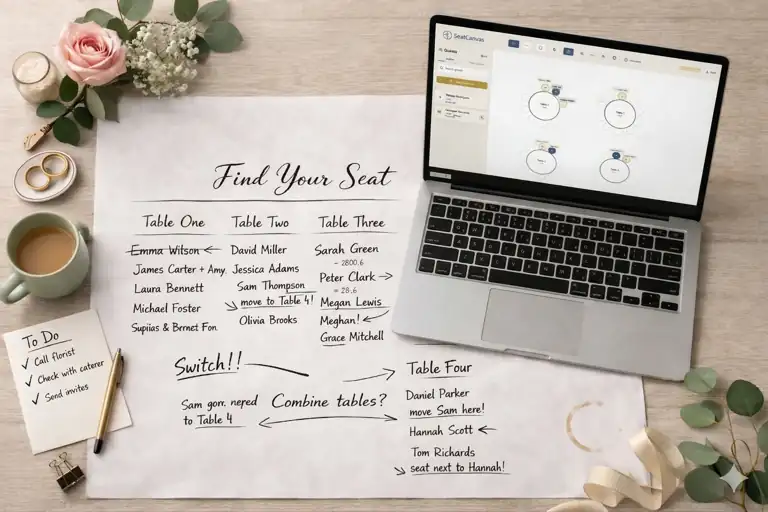
Canva seating chart templates are everywhere. They look clean, rank well on Pinterest, and for about 20 minutes they feel like the answer.
Then you try to seat 85 guests across 9 tables and realize you are editing text boxes one at a time inside a graphic design tool.
What Canva Actually Gives You
Canva is a graphic design platform. A very good one. For seating charts specifically, it offers pre-designed templates with table graphics and placeholder names, customizable fonts and colors that look sharp on screen, and export to PDF or PNG for printing.
That is genuinely useful if you need a printed welcome sign showing “Table 1: Aunt Linda, Uncle Robert…” for the reception entrance. Canva handles that kind of visual output well.
The problem starts when you try to use it as a planning tool.
Where Canva Breaks Down
A seating chart has two jobs. The visual output — what guests see at the door. And the operational plan — what you, the venue, and the caterer need to make the room work.
Canva handles the first. It ignores the second entirely.
| Capability | Canva | SeatCanvas |
|---|---|---|
| Pretty seating chart graphic | ✅ Yes | ✅ Yes |
| Import guest list from Excel/CSV | ❌ No | ✅ Yes |
| Drag-and-drop guest assignment | ❌ No | ✅ Yes |
| Track table capacity | ❌ No | ✅ Yes |
| Multiple table shapes | ❌ Template-only | ✅ Round, rectangular, custom |
| Scale to 100+ guests | ❌ Painful | ✅ Built for it |
| Floor plan accuracy | ❌ Decorative | ✅ Spatial |
| High-quality vendor PDF | ❌ Generic export | ✅ Print-ready layout |
Canva templates are decorative. They show where people sit. They cannot help you figure out where people should sit. That distinction barely matters at 20 guests. It matters enormously at 80.
The Real Problem: Editing at Scale
Try SeatCanvas — Free
Build your seating chart visually. Import guests, drag to tables, export a print-ready PDF.
Start Planning Free →At a small dinner party, typing 15 names into text boxes is fine. Annoying, but fine.
At a wedding, you are managing a list that changes. RSVPs come in late. Plus-ones materialize. The cousin who confirmed in February cancels three weeks before the event. Every change means hunting through a multi-layered design file to find the right text box, resize it, reflow the surrounding names, and hope you did not accidentally break the template formatting.
That is not event planning. That is graphic design under duress.
A dedicated seating chart tool treats your guest list as data, not decoration. When someone moves tables, you drag them. When someone cancels, you remove them and the layout adjusts. When the caterer needs a count per table, you export it. No text-box archaeology required.
When Canva Still Makes Sense
Canva earns its place in two scenarios.
The display sign. Once your seating plan is finalized, a Canva template is a perfectly fine way to create the printed poster that greets guests at the door. Pretty fonts. Gold accents. That part Canva does well.
Events under 20 guests. A family dinner, a small birthday, an intimate gathering. At that scale, the operational complexity is low enough that a design tool can survive the job. You will still manually type every name, but at least you will finish in one sitting.
Past those two cases, a dedicated planner saves real time.
Looking at a dedicated seating tool that’s no longer what it used to be? See SeatCanvas vs AllSeated — covers what changed after the Prismm rebrand and Cvent acquisition.
How to Use Both Tools Together
The practical move is to split the work. Let each tool do what it was built for.
Plan in SeatCanvas
Open SeatCanvas and build your actual room layout. Add your tables — round, rectangular, mixed. Set the capacity for each one.
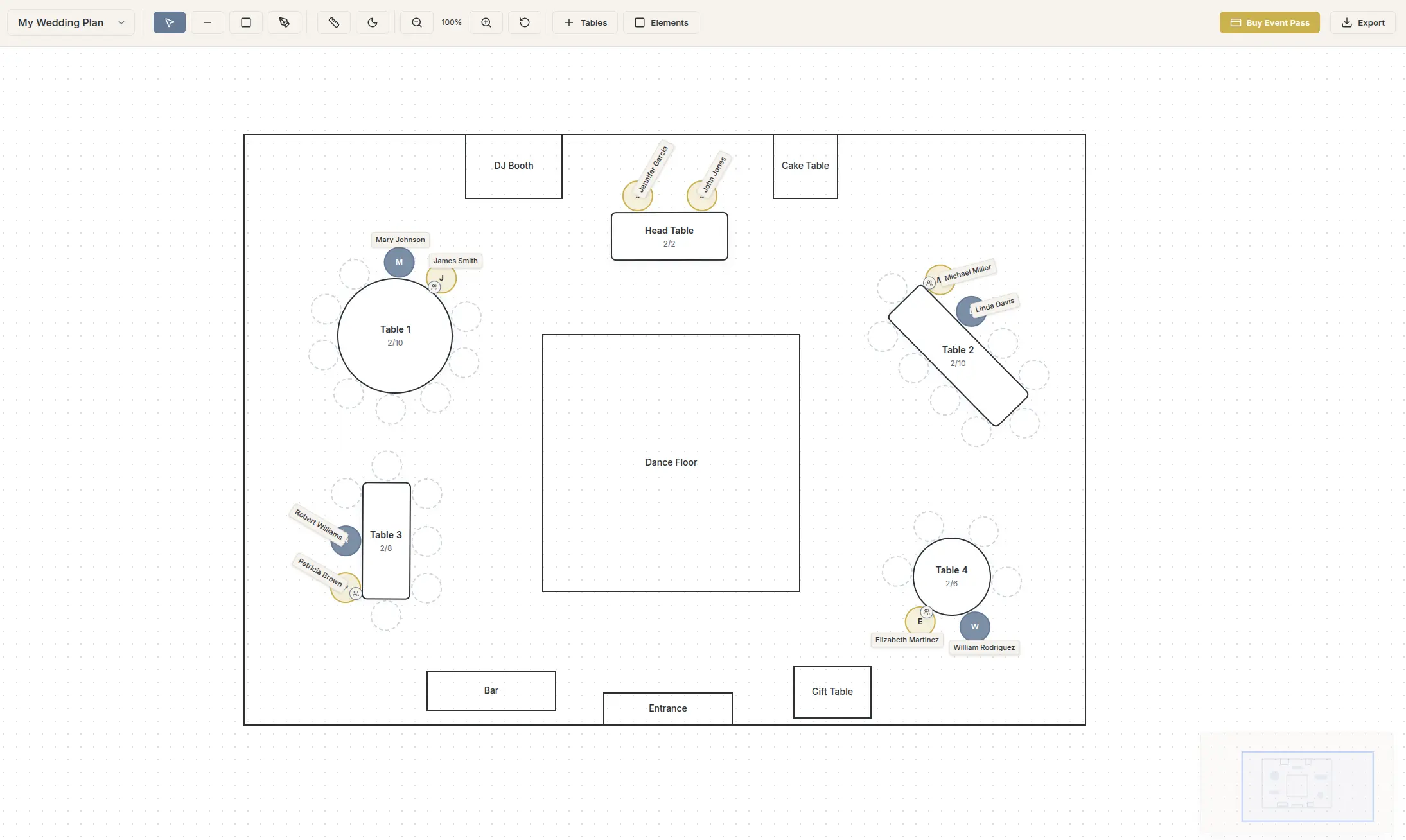
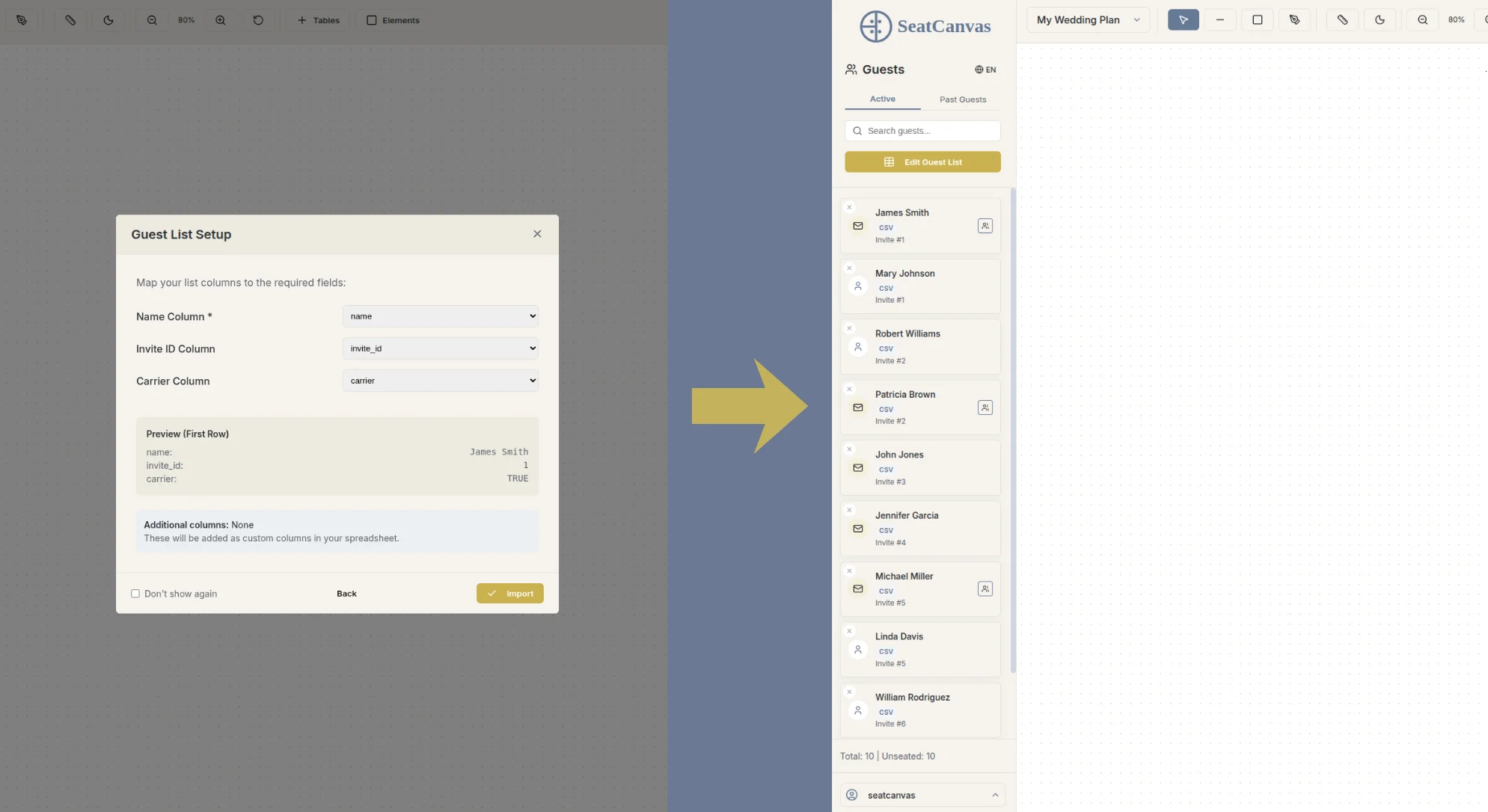
Then import your guest list from the spreadsheet you already have. Drag guests onto seats. Rearrange when plans change. Keep the caterer’s table counts accurate without recounting anything.
Design the sign in Canva
Once the seating plan is locked, take your finalized table assignments and create the printed display graphic in Canva. This is what Canva is built for. Use the nice fonts. Nobody is scrambling to edit this file anymore because the plan is already done.
Export the floor plan from SeatCanvas
Your venue coordinator and caterer need the floor plan PDF, not the welcome sign. Export it from SeatCanvas and send it directly. Two different documents for two different audiences.
Frequently Asked Questions
Can I make a seating chart in Canva?
Yes. Canva has templates you can customize with guest names, table numbers, and your event’s color scheme. The result is a static graphic — you manually edit text fields for each guest. It works for small events and display signage. For planning and managing assignments at scale, a dedicated seating chart tool is faster.
What is the best alternative to Canva for seating charts?
SeatCanvas is purpose-built for seating chart planning. It supports CSV and Excel import, drag-and-drop tables and seats, and print-ready PDF exports. The free tier covers up to 40 seated guests. For a broader comparison of options, see the guide on free seating chart makers.
Is Canva good for wedding seating charts?
Canva is good for creating the printed seating chart sign guests see at the reception entrance. For the planning process — managing 100+ guests, tracking capacities, handling late RSVPs, and giving your venue a spatial floor plan — a dedicated seating chart tool handles the logistics that Canva was never designed for.
Can I import a guest list into Canva for seating?
No. Canva does not support importing guest lists from spreadsheets. Each name must be typed manually into a text box on the template. SeatCanvas supports direct CSV and Excel import, mapping names and party sizes automatically.
The Verdict
Canva makes good-looking graphics. That is not the same as making a good seating plan.
Use Canva for the sign. Use a dedicated planner for the plan. And if you want to see what the planning side actually looks like, try SeatCanvas for free — 40 seated guests, no account required, five minutes to know if it fits your event.
✦ Google Preferred Source
Want to see more SeatCanvas stories on Google?
You can ask Google to show SeatCanvas more often in your own Top Stories and supported Google experiences. This personalizes your account; it does not raise SeatCanvas for everyone.
Google's control loads only after you choose Continue with Google.